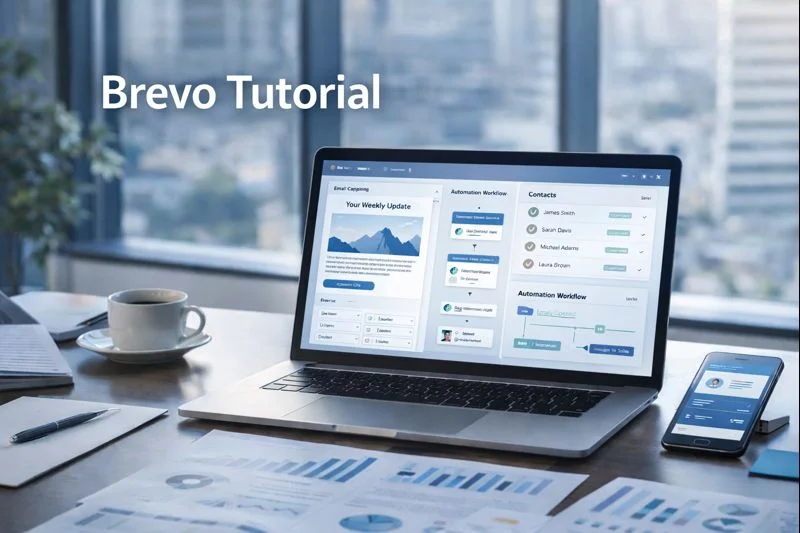
I spent time building campaigns, templates and automation in Brevo while testing deliverability, segmentation and transactional flows for real projects. This guide walks you through every step I took — from account basics to sending, plus pro tips, templates, and a checklist so you can launch your first high-performing campaign today.
Quick overview — what you’ll learn
Preparing your Brevo account for sending (senders, domain auth, lists)
Creating a campaign: step-by-step UI flow
Designing with templates: drag & drop and HTML options
Segmentation: target the right people (high ROI)
Testing, scheduling, A/B testing and deliverability checks
Automation hooks and re-use (how campaigns fit in journeys)
Pro tips, screenshots prompts, and a final launch checklist
If you prefer video, follow the same steps while screen-recording your account — screenshots and short screen clips are a big trust signal for readers and affiliate reviewers.
1) Prep: account basics before you create a campaign
Before you click Create Campaign, do these four things so your campaign sends smoothly and lands in the inbox.
A. Verify sender email and set a clear From name
Add and verify the email address you’ll send from (example: hello@yourdomain.com). Pick a recognizable From name (your company or product) — this increases opens. Brevo requires you to choose a sender when configuring campaigns.
B. Authenticate your sending domain (DKIM & SPF)
Authenticate your domain in DNS (DKIM & SPF). This is crucial for deliverability and often the difference between inbox and spam. Brevo’s help center has step-by-step domain authentication guides.
C. Clean & import contacts (lists vs. tags)
Import CSV contacts under Contacts → Lists. Use import mapping and validate emails. If you’re migrating from another platform, create a short re-engagement flow first.
D. Decide your campaign objective & KPIs
Set measurable goals: opens, clicks, revenue per send. Use UTM tags on links for accurate attribution.
2) Create your first email campaign — step by step
Brevo organizes campaign creation into a simple 3-step flow: Configure → Design → Schedule & Send. I’ll walk through each.
Step A — Open the campaign creator
Go to Marketing > Campaigns > Create campaign and select Email (Regular email campaign). Name the campaign for internal tracking (e.g., June Promo — VIP list).
Step B — Configure sending details
Sender: pick your verified sender.
Recipients: choose a List or Segment (we’ll cover segments next).
Subject line & preview text: use subject length of ~40–60 characters for best mobile rendering. Add a preview sentence that complements the subject.
Pro tip: Write 3 subject line variations in a doc and test using A/B later.
Step C — Design the email
Choose between:
Drag & Drop Editor — WYSIWYG blocks, responsive by default. Great for marketers who want speed.
Rich Text (Simple) Editor — lightweight, personal-email style. Use for one-to-one style sends.
HTML Editor — paste custom HTML when you need pixel perfect design.
Start from a template (Brevo has prebuilt templates), or from scratch. Insert dynamic contact variables like {{contact.FIRSTNAME}} for personalization.
Step D — Add CTA & tracking
Use a single primary CTA above the fold and another near the end.
Enable UTM tracking (manually or via Brevo settings) for campaign links to track revenue in analytics.
Step E — Final checks
Check image alt text, plain text fallback, and links.
Use Brevo’s preview and send a test email to multiple providers (Gmail, Outlook, Apple Mail).
Validate subject, From, and unsubscribe link presence.
3) Designing with templates — practical choices & examples
Brevo supports email templates you can save and reuse for campaigns, automation or transactional emails. Templates live under Marketing → Templates.
Template types & when to use them
Promotional template: hero image, benefits, CTA button (use for sales).
Newsletter template: modular blocks for multiple stories.
Transactional template: minimal branding, order details (use via SMTP/API).
Simple/personal template: text-first, for outreach or founder emails.
Example: Promotional template structure
Preheader (short)
Header with logo
Hero image + headline
3 benefit blocks (icons + 1–2 lines text)
Primary CTA button (same messaging as subject)
Secondary social links + footer (unsubscribe, contact)
Brevo lets you save a template and use it across Campaigns, Automations and Transactional emails. Save time by building a template kit (header, footer, CTA block) and reusing it.
4) Segmentation — target the highest value contacts
Segmentation is where campaigns become powerful. Brevo supports simple and complex segments using many conditions: list membership, contact properties, campaign behavior (opens/clicks), purchase history, and custom attributes.
Practical segment examples I use
New subscribers (0–7 days): welcome sequence only.
Active Engagers (opened ≥1 in last 30 days): standard promos.
High-Value Customers (LTV > $500): VIP offers & early access.
Cart Abandoners (triggered via e-commerce integration): specific recovery flows.
How to create a segment
Go to Contacts → Segments → Create a segment.
Add your first condition (e.g., “Has opened campaign X at least once in the last 30 days”).
Combine with AND/OR for complexity. Save and use this segment in Campaigns or Automations.
Pro tip: Keep segments action-oriented (“Last purchase > 90 days → winback”) — these convert better than demographic-only segments.
5) Testing, scheduling & A/B testing
A/B testing (subject, content, sender)
Brevo supports A/B testing campaigns. Test subject lines, sender names, or content. Set the size of the test group and a winner criteria (open rate or click rate). Once a winner is determined, Brevo sends the winning variant to the remainder.
Scheduling & send time optimization
You can schedule at a specific date/time, or use send-time optimization if available on your plan. If you have an international list, consider local time sending or segment by timezone.
Deliverability checks before send
Confirm DKIM & SPF are active.
Run a spam test (subject + content) using a third-party tool.
Keep images/light HTML ratio sensible — too many images can trigger spam filters.
6) Campaigns inside Automation workflows
Campaigns don’t live in isolation. Use them as nodes inside Automation workflows (welcome series, drip, re-engagement). Create an automation under Automations → Workflows, pick a template (like Welcome sequence) and add Campaign sends as steps. This lets you reuse the same campaign content while controlling timing and triggers.
Example workflow: New subscriber → wait 1 day → send “Welcome – Getting Started” campaign → wait 3 days → send “First Offer” campaign IF not purchased.
7) Pro tips from my testing
Separate transactional vs marketing sending: Use Brevo’s SMTP/API for transactional emails to protect marketing reputation.
Personalize but don’t overdo: Dynamic content fields boost CTRs, but always fall back to default text.
Use re-engagement segments: Remove or re-engage cold contacts (no open in 12 months) to preserve sender reputation.
Store templates for reuse: Keep a small library: Promo, Newsletter, Transactional, Founder Email.
Include plain text view: some clients prefer plain emails; Brevo supports simple editor outputs.
Final Thoughts
Brevo is one of the most beginner-friendly yet powerful email marketing platforms today. Once you understand how to set up campaigns, create templates, apply segmentation, and optimize testing — you can drive significantly better engagement and sales from your email list.
If you follow the steps in this tutorial, you’ll be able to launch campaigns confidently and set up a repeatable process for future sends.
Frequently Asked Questions: